
eM Client currently supports these cloud storage providers:
Depending on the setup and capabilities of each provider, you will have different options for what you can do with the cloud storage attachment, by right-clicking it and selecting from the context menu. Some options are only enabled from a certain provider if you have a subscription to that cloud storage service. These options are available at the providers’ discretion.
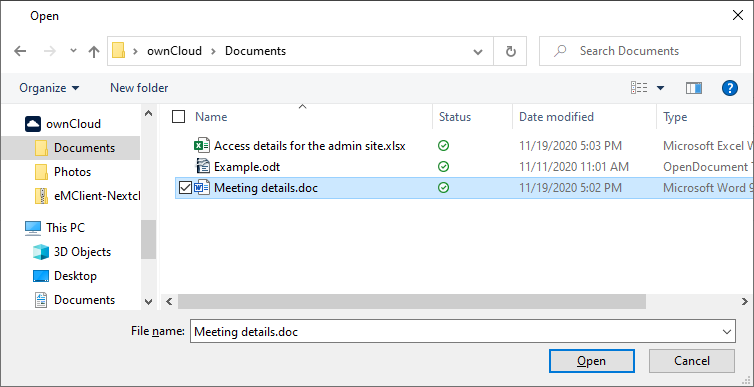
To attach a file from your cloud storage as a link, first click the Attachment button the same way you would attach files normally.
Then go to a cloud folder set on your device and choose a file you wish to add to your email as a link.
Tip: Remember that you first need to download the cloud storage provider’s application on your computer and add it to eM Client
A dialogue box will open, giving you a choice to link the file instead of physically attaching it. To link the file, click 'Yes'.
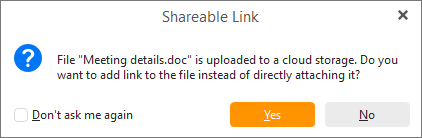
Additionally, the option to attach the files uploaded to cloud storages only as links can be set as default behavior by clicking the box for Don’t ask me again. This default can be managed in Menu > Settings > Mail > Compose > Cloud Storage Attachments
The credentials of your cloud storage account are required to proceed the first time. The password can be saved and remembered. Depending on the selected service, the login will appear differently.
You can also first add your attachment and then upload it to the set up cloud service via the right-click option Upload to cloud storage.
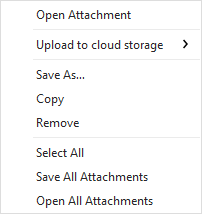
Attachment options before upload
After the file is uploaded to your prefered Cloud storage you also get a number of other options, namely Setting a password, Setting an expiration date for your download link and Allowing editing for text files.
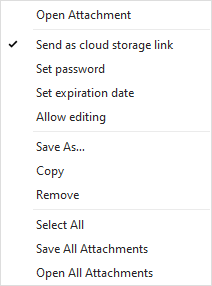
Attachment options after upload
This option is always available for all attachments, regardless of whether they are locally attached or attached with a cloud service. It opens the attached file, in case you want to check it one more time before sending the email.
This will send the attachment as a link via your selected cloud service, instead of a locally attached file. Unchecking this option will revert the attachment back to being locally attached.
Available for Dropbox, Nextcloud, OneDrive, OwnCloud.
This will enable you to set a password to protect the linked attachment. This ensures that no one except the intended recipient who knows the password can open the attachment link. There’s no way to recover this password if you forget it, but you can just send the same file again with a new password (or without one).
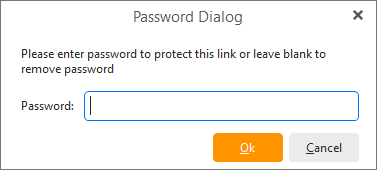
Available for Dropbox, Nextcloud, OneDrive , OwnCloud.
This option allows you to set an expiration date for the attachment link. After this date and time has passed, the recipient will no longer be able to access the file from the link in your email.
Toggle between read only and editable mode for documents of supported editable file types (for .rtf, .doc, .docx, .xls, .xlsx, .ppt, and .pptx files)
The remaining options are always available for all attachments, regardless of whether they are locally attached or attached with a cloud service
It allows you to save the file on your computer.
This copies the attached file so you can paste it.
Removes the attachment
Selects all the attachments instead of just a single one.
It allows you to save all the attached files on your computer.
It opens all the attached files